Setup Model for Part O Report
- Register the relevant Rooms and Windows.
- If there are multiple units in the model, the unique Unit name can be assigned either as a Building Name or as Attribute of the Room during Registration or Modify.
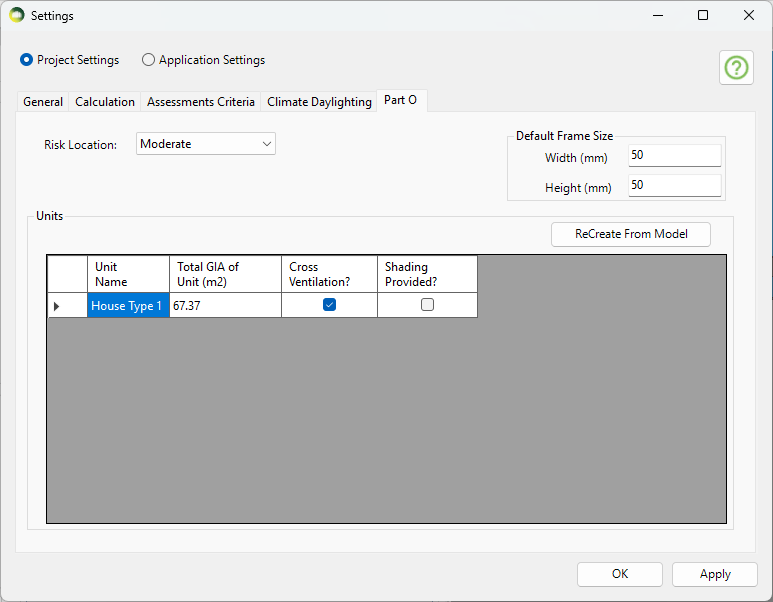
- Open Settings > Project Settings > Part O
- Set the Risk location of the site as Moderate or High Risk.
- Set the default frame width and height. This is used to calculate the openable area of the window and can be changed per window during Pane info set up later as well.
- Unique Unit names should be listed here.
- If Unit info has changed recently, Press ReCreate From Model
- The sum of room floor areas is initialised as the total GIA of unit. Update this if necessary.
- Set Cross Ventilation and Shading Info.
- Press OK to save changes.
Setup Pane Info for Removal of excess heat calculation
In this step, Information regarding pane opening type can be specified.
- Pane opening type can be saved to a Window via Attribute field using Register or Modify dialog.
- Add pane opening types to the list of Attribute by using the Edit button next to the combobox.
- Set the appropriate pane opening type and Register or Update the window.
- Default frame width and height for all windows can be set in Settings > Project Settings > Part O section.
- Individual window frame sizes should be changed in the excel report once it is created.
Exporting Report
- Open the Report Export dialog.
- Select Part O in the Regulation and Calculation section.
- Select the Room group name in the Entities Selection section.
- Press + sign next to the PartO SM in the Regulation and Calculation section to add it to the export list.
- Select the Excel Report Format to be MBS or Future Homes using the toggle.
- Press Export Excel.
Future Homes Excel report
Room group must contain rooms from the same Unit or Building only as the report summarises results for one unit only.
If there are multiple units in the model then room group should be created based on Attribute or Building Name in order to create distinct report for each Unit.
You must also follow the below steps after opening the excel file to enable the formula calculation.
If these steps are done, some cells to show Error! and some cells will remain empty.
- Click on Excel Menu Formulas tab
- Click on Calculation Options > Compatibility Version > and Select Version 2.
- Save the excel file.