BS EN17037 Illuminance (SDA) Criteria
Illuminance Criteria
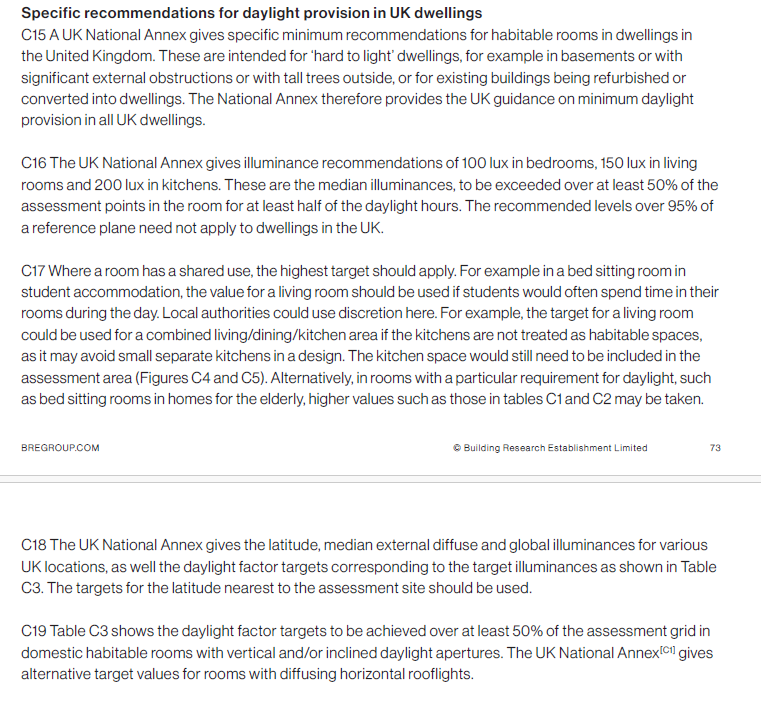
UK National Annex
The UK Annex is intended for “hard to light” dwellings.
The illuminance targets for BS EN17037 SDA can be accessed via Project Settings Climate Daylighting tab.
The target Lux is to be met for 50% of the time over 50% of the space.
Notes (Also Applies to EN17037 Criteria too)
- Daylight Hours: The hours of daylight are determined by rank-ordering (i.e. from highest to lowest) the 8760 values for diffuse horizontal illuminance and then extracting the first (i.e. the highest) 4380 hourly values. Note that the retained (i.e. highest) 4380 values may include some zero values, or that the discarded 4380 values may include some non-zero values.
This is to be expected given the nature of illuminance data in climate files and does not affect the outcome. - The relevant area of the space plane covers the entire space, and is located 0.85m above the floor.
- A perimeter area is excluded from the area of the space, because locally, illuminances are not relevant to the assessment of daylight provision, since the illuminances can be excessively high (near windows) or excessively low, next to opaque walls. A perimeter area is the area located next to the walls of the space, and should be excluded in daylight calculations.
EN17037 Illuminance (SDA) Criteria
Illuminance Criteria
The illuminance targets for BS EN17037 SDA can be accessed via Project Settings Climate Daylighting tab.
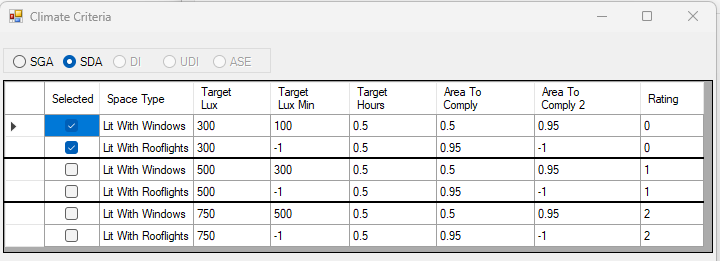
For spaces with daylight openings in vertical and inclined surface, The target Lux is to be met for 50% of the time over 50% of the space. The min target Lux is to be met for 50% of the time over 95% of the space.
For spaces with daylight openings in horizontal surface, The target Lux is to be met for 50% of the time over 95% of the space. There is no minimum target lux.

BREEAM Illuminance (DI) Criteria
Terms and Definitions
Average daylight Illuminance
Daylight illuminance for all points in the space for a specific hour (e.g. 1st Jan 8 AM) is averaged. If this average is over the target lux (e.g. 300 lux) value, the hour will count towards the achieved hour for the target lux.
Minimum Daylight Illuminance
The lowest point daylight illuminance in the space at a specific hour e.g. 1st Jan 8 AM) on the working plane within a room. The minimum point daylight factor is the lowest value of the daylight factor on the working plane at a point that is not within 0.5m of a wall. If this lowest lux value is over the target lux min value (e.g. 90 lux), the hour will count towards the achieved hour for the target lux min.
Setting Weather Location and Hours
Setting up Weather data and Location
Select location for climate based calculation on Project Settings dialogue > General tab > Location section. All weather data files must be in epw format and located in below folder:
Autocad: %appdata%/MBS Software/DaylightForAutocad/Climate Files
Revit: %appdata%/MBS Software/DaylightForRevit/Climate Files
For new locations, the .epw file (IWEC format) can be downloaded from the energy plus website.
- Select the region then the country then the location and then select epw to download the file.
- Once downloaded copy the .epw file to the above appdata folder which can be opened by clicking the Folder icon next to the climate file location combo box.
This setting is project specific and needs to be set per job.

Setting up Climate Hours
- Before running the calculation, the regulation and annual daylight hours options have to be set through Project Settings > Climate Daylighting tab.
- The test has to be run separately for each regulation. Results are saved per regulation and thus once they are calculated, corresponding reports could be outputted without a re-run.
- The recommended daylight hours for BREEAM, BS EN17037and EN17037 is Sunrise to Sunset.
- For BS EN17037 and EN17037, 50% of the hours with the highest illuminance (4380 hours) is used instead of all the hours between sunrise and sunset.
- The filter hour is inclusive for the start hour and exclusive for the end hour.
For example, if the occupancy starts at 9 AM and finishes at 5PM, the filter hour should be set to 9 to 17 (8 Hour Occupancy)

Setting Pass Criteria
Assessment Criteria are set per project in Project Settings dialogue > Climate Daylighting tab.
Select the regulation first and then Press the … button next to the regulation to open the Climate Criteria dialog for the regulation.
SDA BS EN17037 Criteria
The criteria is set according to BS EN17037 regulation. The criteria are set based on the space type.

SDA EN17037 Criteria
The criteria is set according to EN17037 Regulation. The criteria are fixed and grouped by their rating. The Selected criterion is queried and used for calculation.
BREEAM DI Criteria
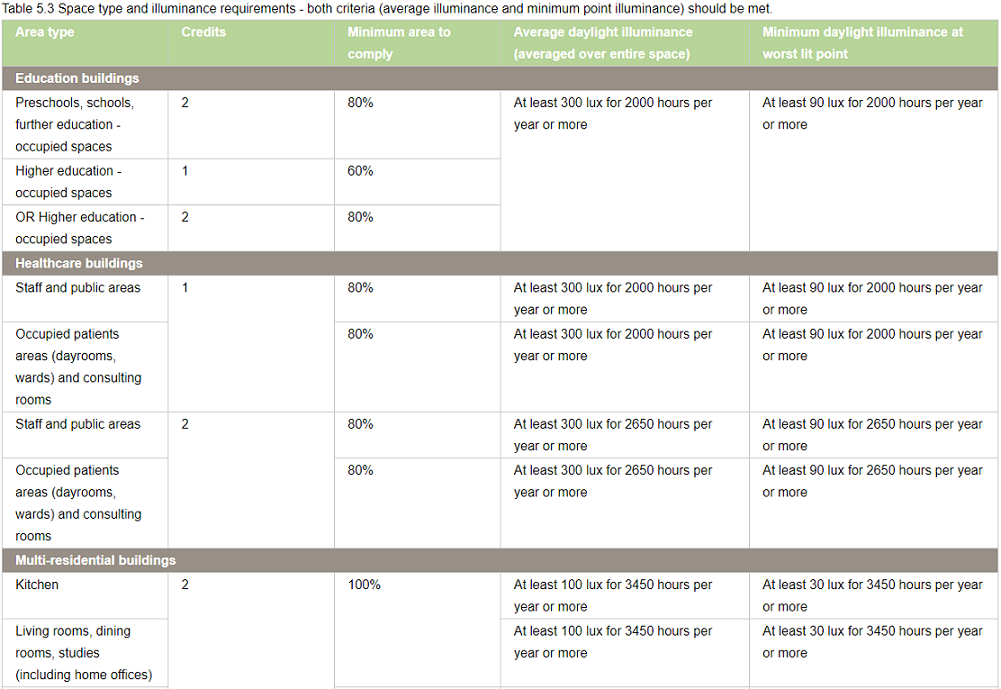
All the entries on BREEAM Regulations Table 5.3 are predefined based on the BREEAM New Construction 2018 and loaded as default in Criteria table dialogue.

Each property and room type pair in BREEAM Regulations Table 5.3 is translated into one or two rows(based on number of credits, target lux, occupied hours) in the dialogue.
If a property, room type pair has different credits, target lux or occupied hours one row is added for each credit in the table dialogue.
As an example, below Staff room type in Healthcare property has two entries for 1 Credit and 2 Credit with different occupied hours.
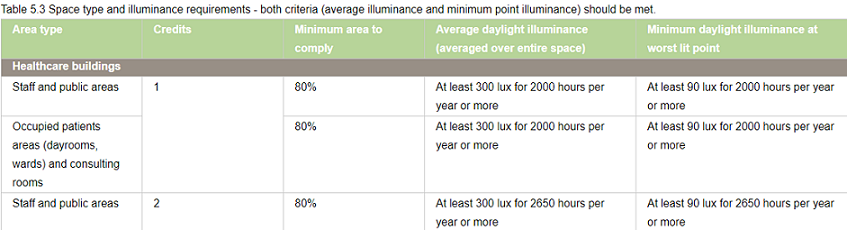
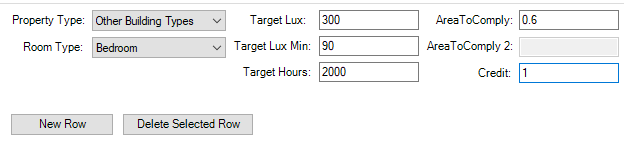
Two records are added to the table with the corresponding values for credit value, target lux and occupied hours.
The first entry for credit 1 is selected for calculation.
– To Delete an existing criterion select the row on the table and press the Delete Selected Row button.

To Add new criterion fill in the text boxes with corresponding criterion and press the New Row button. Note that the AreaToComply column takes value between 0 – 1.
– To Update an existing criterion simply change the values on the table.
The Selected column displays the criteria that are set for calculation. The DI calculation uses the
registered property and space type of a room to query its assessment criteria from the above table. If more than
one records exists for this property and room type, the Selected is returned from the table. If no records exists
the default “Other Building Types” criterion is used.
Notes for All Climate Criteria
Note 1: The output report displays criteria that has been set prior to running the calculation.
In other words the selected criteria record is saved against the room on calculation time and same criteria is queried at report time.
Note 2: Changing the Selected criteria, changes to Target Lux, Target Lux Min, Target Hours requires re-running the calculation.
“Area To Comply” and “Credit For Area To Comply” does not require rerun.
Steps to run Climate-Based Calculation
- Put the objects in the model in specific layers. e.g. walls in “wall” layer, any external obstructions in “external” layer and so on.
- The registered windows will automatically get Glass material based on their properties set during the registration time.
However the registered windows must be added to relevant group before conversion.
For more details on how to setup the model for running Daylight Factor, utility commands that automate the process and questions on Window Glazing Transmittance,
please refer to How to Setup a model for Assigning the Material? topic in Materials knowledge base section. - Open the Material dialogue and assign a material for each layer. Material Library has a predefined list of most of the common materials. Yet you can define your own or customize them. For more details on how the material dialogue works please refer to About Material Dialog topic in Materials knowledge base section.
- Set the Ray tracing Method and its options on Settings > Ray tracing method
- Tick Convert to Radiance format or Convert to GPU format before Converting the model.
- Set climate regulation to BREEAM, BS EN17037 or EN17037 or LEED or EFA
- Select SDA or DI calculation
- Finally run the calculation using the CPU or GPU rendering method
BREEAM DI Results
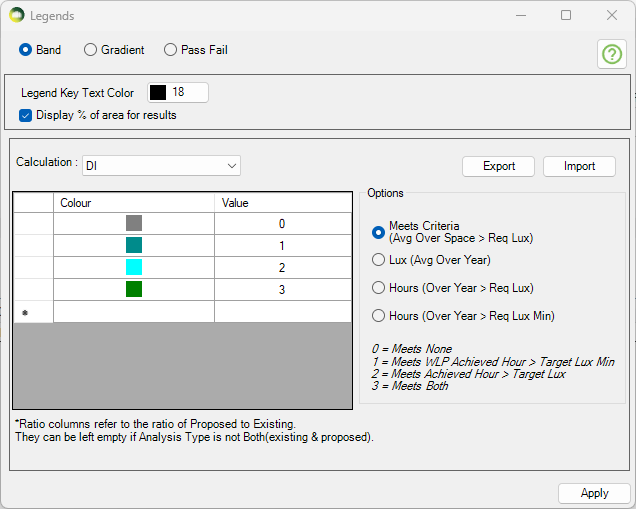
The DI results can be presented visually in 4 different ways.
- As shown in the image, the Meets criteria option will show a single colour image for the room based on whether Achieved hour > Target Lux and/or Worst lit point achieved hour > Target Lux Min are met or not.
- Please note that the rest of the three options are alternative presentation of the result and do not show the achieved hour for target lux and target lux min as averaged over the space
- The Lux (Avg Over Year) option can be used to show the average lux achieved by each point in the room over the year.
- Hours (Over Year > Req Lux) option can be used to show the number of hours when each point in the room achieve the req lux.
- Hours (Over Year > Req Lux Min) option can be used to show the number of hours when each point in the room achieve the req lux min.
The DI Excel result contains the results for the main criteria as well as some alternative results.
As shown in the DI criteria results image,
- The Req Lux Achieved Hours column shows the total number of hours when lux value averaged over the space is at least 300 Lux.
- The WLP Achieved Hours column shows the total number of hours when the worst lit point lux value (except foe the points within 0.5m of the wall) is at least 90 Lux.
- The Meets Criteria column shows Yes, If both Req Lux Achieved Hours and WLP Achieved Hours are more than the 2000 hours (Req hour per year).
The Alternative result columns are to the right of the Meets criteria column and are added to give alternative results for each points over the year.
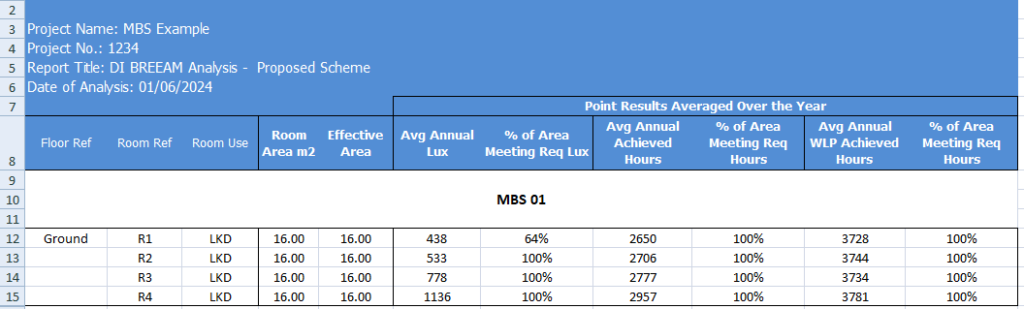
- The Avg Annual Lux column shows the average lux value based on the average lux achieved by all the points in the room. Each points average lux value can be shown by using the Lux (Over the year) option in Legend settings.
- The % of Area Meeting Req Lux column shows the percent of the points which have an average of at least 300 Lux.
- The Avg Annual Achieved Hours column shows the average achieved hours value based on the achieved hours with at least 300 lux achieved by all the points in the room. Each points achieved hours with at least 300 lux can be shown by using the Hours (Over Year > Req Lux) option in Legend settings.
- The % of Area Meeting Req Hours column shows the percent of the points which achieve 2000 hours with at least 300 Lux.
- The Avg Annual WLP Achieved Hours column shows the average achieved hours value based on the achieved hours with at least 90 lux achieved by all points in the room. Each points achieved hours with at least 90 lux can be shown by using the Hours (Over Year > Req Lux Min) option in Legend settings.
- The % of Area Meeting Req Hours (WLP) column shows the percent of the points which achieve 2000 hours with at least 90 Lux.