What are the steps to add calculations to the list?
- Select the relevant regulation (eg: ROL, BRE, BS EN17037). The associated calculations get displayed below each regulation.
- Set the Group on the relevant boxes.
- Click on the + icon next to the calculation name to add the individual calculation.
- Alternatively, Click on the + icon next to All to add all the calculations in the regulation.

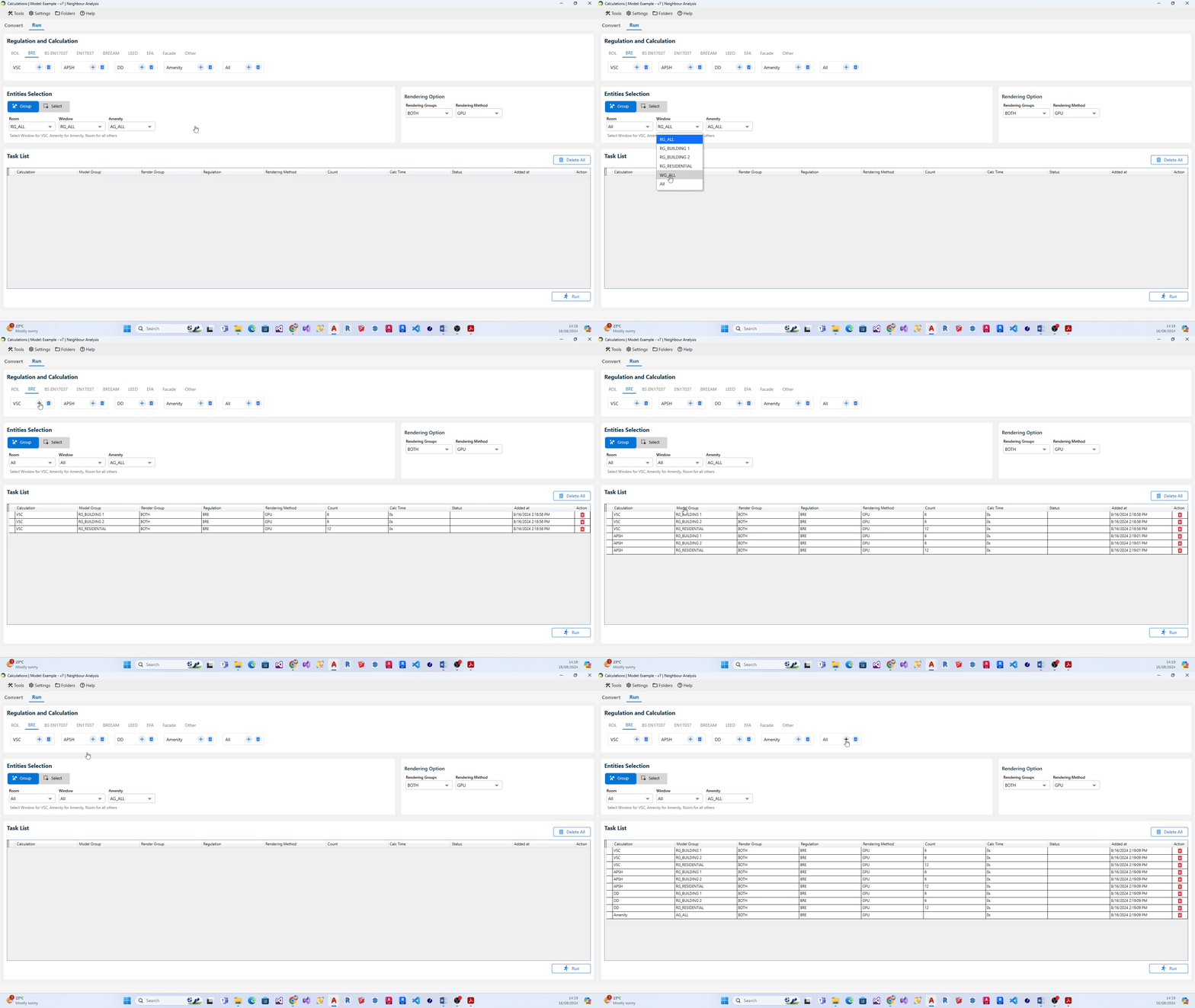
What are the steps to add multiple groups for a calculation to the list?
- Select the relevant regulation (eg: ROL, BRE, BS EN17037). The associated calculations get displayed below each regulation.
- On Enitities Selection section, Select All option from the relevant entity (i.e. Room, Window, Amenity, Facade). Note: All option will be displayed only if there is more than one group in that particular entity type.
- After selecting the All option, click on + icon next to the desired calculation. Alternatively, you can click + icon next to All calculations if you would like to add all the groups for the calculations in the regulation to the task list.
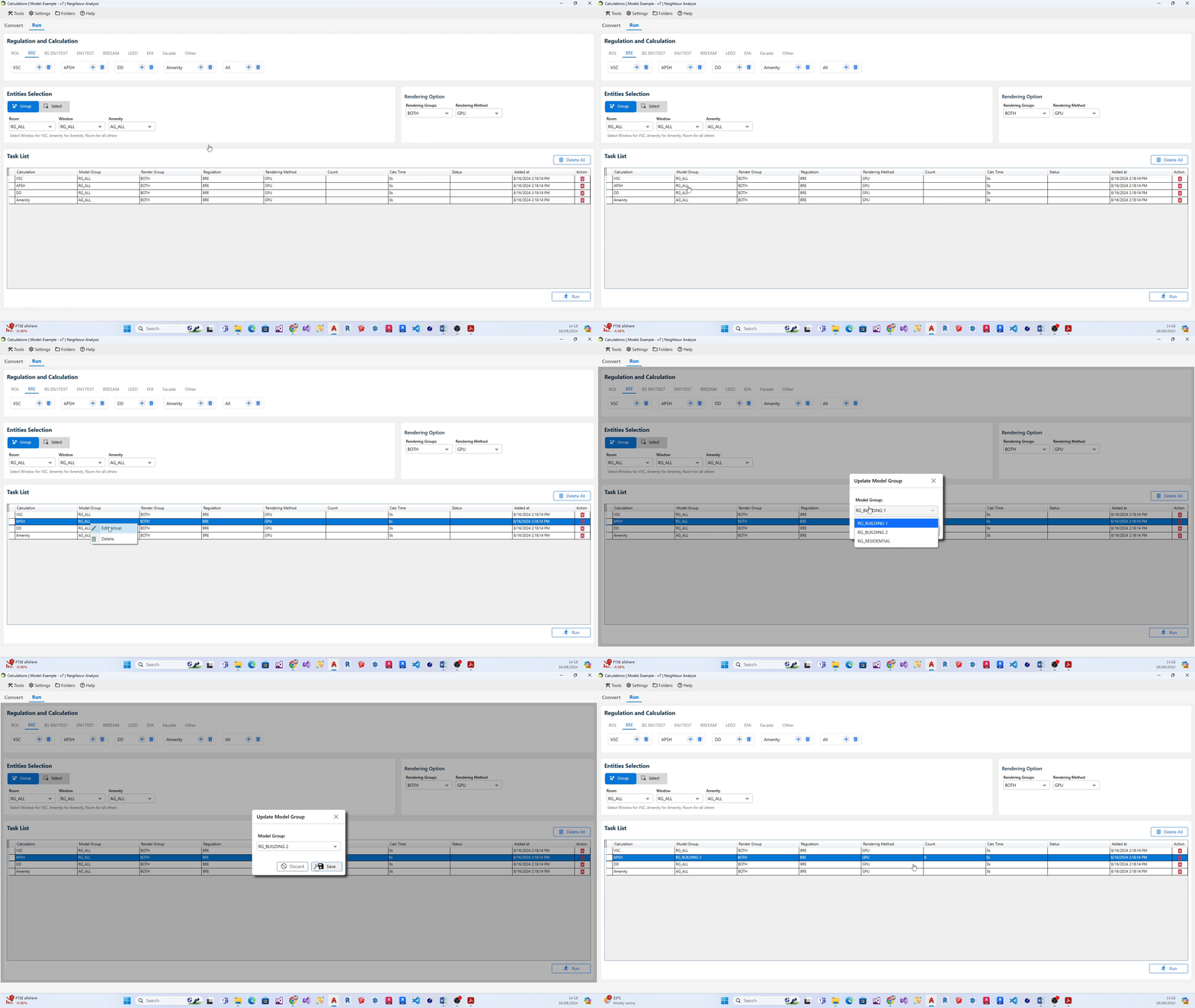
What are the steps to modify group for calculation on the list?
- Head to the relevant task on the task list and right-click on it.
- A little popout dialogue containing the list of relevant groups for the selected calculation will appear on your screen.
- Select the required group and click on Save.