List Of Layer Names
- Room: Room_Polylines (Can also use Room_Polylines_Bedroom or Room_Polylines_Living Room to specify room type during registration)
- Window: Window_Polylines
- Building Outline: Building_Polylines
- Building Detail Block: Building_Polylines
- Extra Building Outline: Building_Sub_Polylines
Building Detail Block
- Click on Insert Building Block button on the Register Model section on the Register Dialog.
- Select the building polyline to insert the building detail block.
- Type the name of the building on the Building name text box.
- Then Select the start floor in the building from the combo box.
If the floor name needed is not present on the list, Edit the Floor Names list to add the name and repeat this process. - It will be added to the Building_Polylines Layer.
Registration By Model Steps
- Combine Pre-Reg stage check box
This disables the buttons for pre reg Step 1 and Step 2. The register by model will be performed in one go with Step 3 directly. The pre reg rooms and windows step are done in background and can be enabled by unticking the Combine Pre-Reg stage option if necessary for debugging. This option will also work when Without Rooms option is checked. - Step 1: Pre-Reg Rooms
- Updates building names from blocks with building name and starting floor names.
- Determines Building and Floor for Rooms based on Building_Polylines and Z of room.
- If current Room is higher than 0.5m(this value can be changed if rooms in same floor are in various height) than the previous Room then it is put on a new floor.
- Step 2: Pre-Reg Windows
- Determines Building and Floor for Windows based on Building_Polylines and average height of Pre-Registered Room_Polylines in a floor.
- If the centre of a window is higher than or equal to the average height of rooms in the current floor and smaller than the floor above then it is put on current floor.
- All windows whose centre is higher than or equal to average height of the rooms in the last floor they are put that last floor.
- If Without Rooms is ticked, the window floors are determined using a fixed height of 2.5m. If current window’s centre is higher than 2.5m of previous window’s centre, current window will be put on new floor.
- Step 3: Registration
- Registers windows and rooms to the floors and building determined during pre-reg steps
- Attaches windows which are within the search tolerance (default: 1m) range of rooms to them.
- Rooflight windows will be attached to rooms if they are within the room even if they are further away than the search tolerance.
- If any window is not correctly attached to room, it can be manually attached from Register dialog /Update Mode /Room. Update.
- Summary will show count of room/window polyline which are not registered windows which are facing inside room windows, which are not attached to rooms and windows which are slightly inclined.
- Windows in Odd Shaped Walls
The building polyline can be drawn in much simpler way.
Building polyline doesn’t have to follow the window polyline too closely as long as it is closest to the window centre in any directions.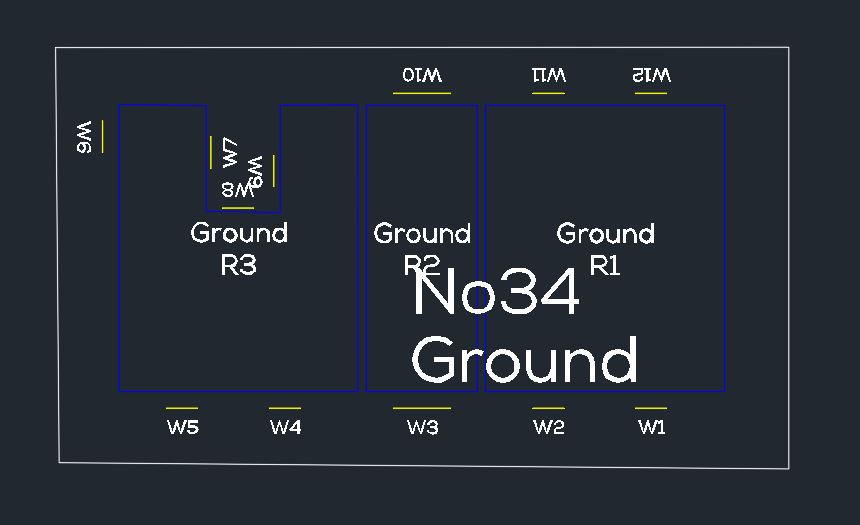
- Notes
- The building polyline determines start and order of window and room names.
- Floor name combo box must have enough entries for all floors to be registered and must be on correct order
- Room and window names will be automatically added using the current naming convention if the list does not have enough entries.
- There is no need to add building names by Editing the Building Names combo box list as the names from the building detail blocks are automatically added after registration.
- Each step can be undone using single Undo as a new Undo group is created for every step